

DNS
How to add a DNS TXT record
A TXT record publishes a text value in the domain's DNS. It is often used for service verification or email configuration, but the name and value must be copied exactly to avoid problems.
Reviewed:
This is a very common request
An external provider has asked you to add a TXT record to your domain's DNS.
It may be Google, Microsoft, an email delivery tool, an invoicing service, a marketing platform or any application that needs to check that you really control the domain.
The request usually looks simple: copy a long text value and paste it into DNS.
But a small mistake in the name, the value or the place where the record is added can make the verification fail. And if an existing record is modified without understanding it, important services can be affected, especially email.
Quick answer
A TXT record publishes a text value in the domain's DNS.
Before adding it, you need to know three things:
- the record name or host;
- the exact value to publish;
- whether it must be added to the root domain or to a subdomain.
The value must be copied without changing it. If the service provides a long text, a token or a string with unusual characters, do not shorten it or correct it.
Why do services ask for TXT records?
A TXT record does not display a web page and does not create a mailbox.
It publishes technical information associated with the domain. Other services can query DNS and check that the information is there.
The most common uses are:
- verifying that you control the domain;
- configuring or authorising email sending;
- publishing an
SPFrecord; - publishing a
DMARCpolicy; - adding verification records for external services;
- publishing security keys or tokens.
Not all TXT records are the same. A Google verification record, an SPF record and a DMARC record have different purposes, even though they are all TXT records.
Information you need
Before changing DNS, collect this information:
- record name or host;
- complete
TXTvalue; - recommended TTL, if the provider gives one;
- the service requesting the record;
- the exact domain or subdomain where it must be added;
- the purpose of the record, for example verification,
SPForDMARC.
If the service gives you only a value but does not clearly indicate the record name, it is better to review the documentation before adding anything.
General steps
- Open the DNS management area for the domain.
- Open the correct domain zone.
- Check whether a related record already exists.
- Add a record of type
TXT. - Enter the exact name requested by the service.
- Paste the value without modifying it.
- Check that no extra spaces have been added at the beginning or end.
- Save the changes.
- Wait for DNS to publish and check the result.
DNS changes are not always visible immediately from everywhere. The real time depends on the TTL and resolver caches.
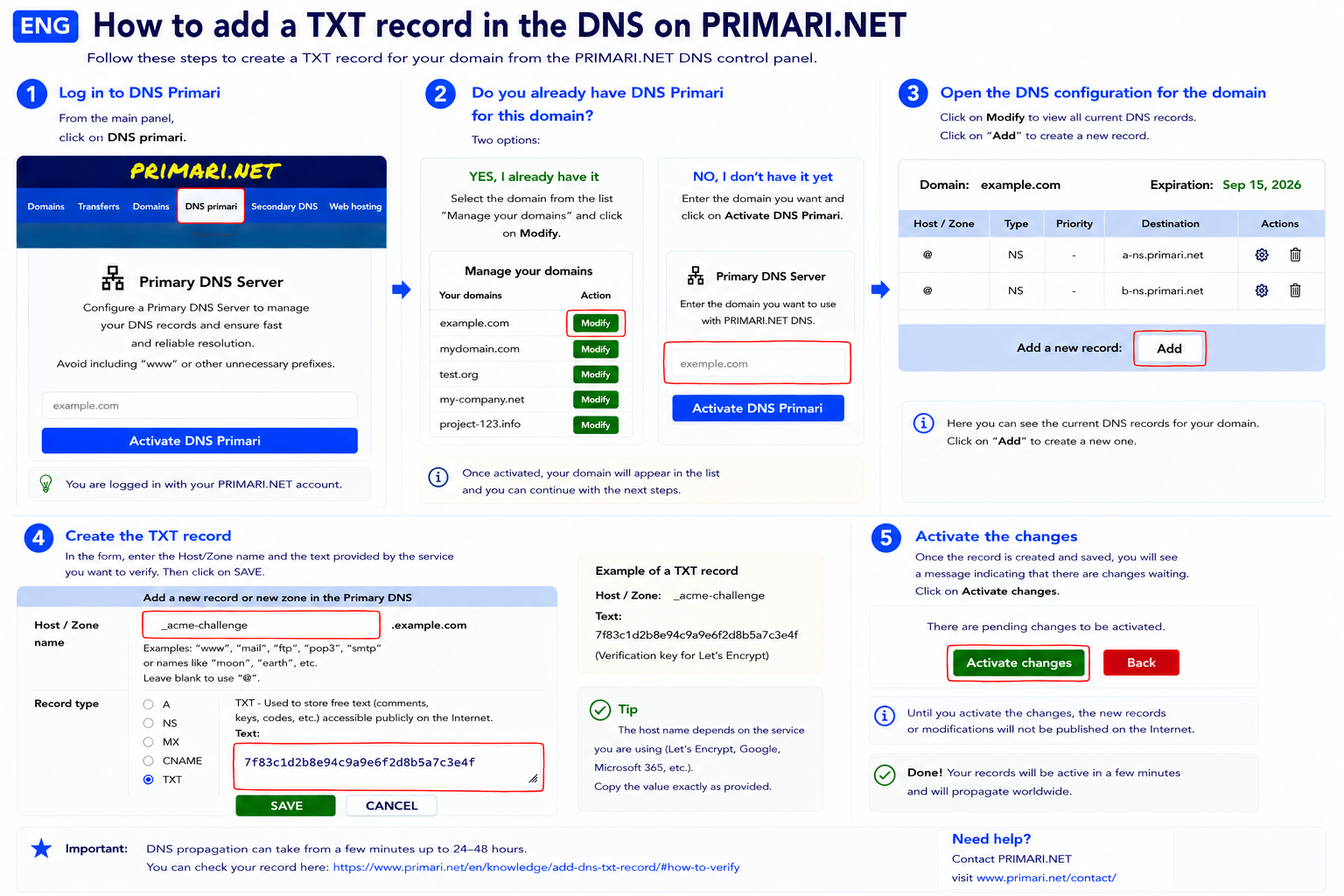
How to add a TXT record in PRIMARI.NET
If you manage your domain DNS with PRIMARI.NET, you can create the TXT record directly from the control panel.
1. Open Primary DNS
Sign in to your PRIMARI.NET account and select Primary DNS in the main menu.
On this screen you have two options:
- If the domain does not yet have the Primary DNS service, enter the domain name in the corresponding field and click Contract Primary DNS.
- If the domain already has the service, you will find it in the Manage your domains section. Click Edit next to the domain you want to modify.
2. Open the domain DNS configuration
When you select Edit, you will see all DNS records currently configured for the domain.
At the bottom of the table you will find the option Add a new record.
Click Add.
3. Create the TXT record
On the record creation screen:
- Enter the host or zone name indicated by the service requesting the record.
- Select the type TXT.
- Copy exactly the value provided into the Text field.
- Click SAVE.
For example, a verification service might ask you to create a host such as _acme-challenge with a specific verification string.
Do not invent or modify this value: copy it exactly as provided by the service.
4. Activate changes
After saving the record, you will return to the domain configuration.
The new record is not yet published on the Internet.
PRIMARI.NET will show that there are pending changes to activate.
Click Activate changes.
From that moment, PRIMARI.NET will publish the new configuration to the DNS servers.
Visual guide
Common mistakes
The most common mistakes are:
- adding the value to the root domain when the service asked for a subdomain;
- entering the record name twice because the panel already appends the domain automatically;
- modifying or deleting an existing
TXTrecord without knowing what it is for; - creating two separate
SPFrecords for the same domain; - copying an incomplete value;
- changing quotes, spaces or symbols from the original value;
- expecting verification to pass immediately while DNS has not updated yet.
Precautions
Do not replace an existing record unless you understand why it exists.
Some configurations, such as SPF, usually need a single record per domain. If an SPF record already exists, you normally should not create a second separate SPF record; the values must be combined correctly.
Be especially careful with records related to email. A small-looking change can make other servers distrust messages from the domain or make a verification stop passing.
How to check whether it is correct
The first indicator is the service that requested the record. It usually provides a verification button or shows whether the domain has been validated.
If verification fails immediately after saving the change, that does not always mean the record is wrong. DNS may not have propagated yet.
If it still fails after waiting, check the record name, the exact value and whether the record was added to the correct DNS zone.
When to contact PRIMARI.NET
Contact PRIMARI.NET if the service gives you a long value, if an SPF record already exists, if you are unsure about the record name, or if verification still fails after waiting.
We can review the DNS zone, check whether the record has been added in the right place, and help you avoid changes that could affect email, the website or other domain services.